
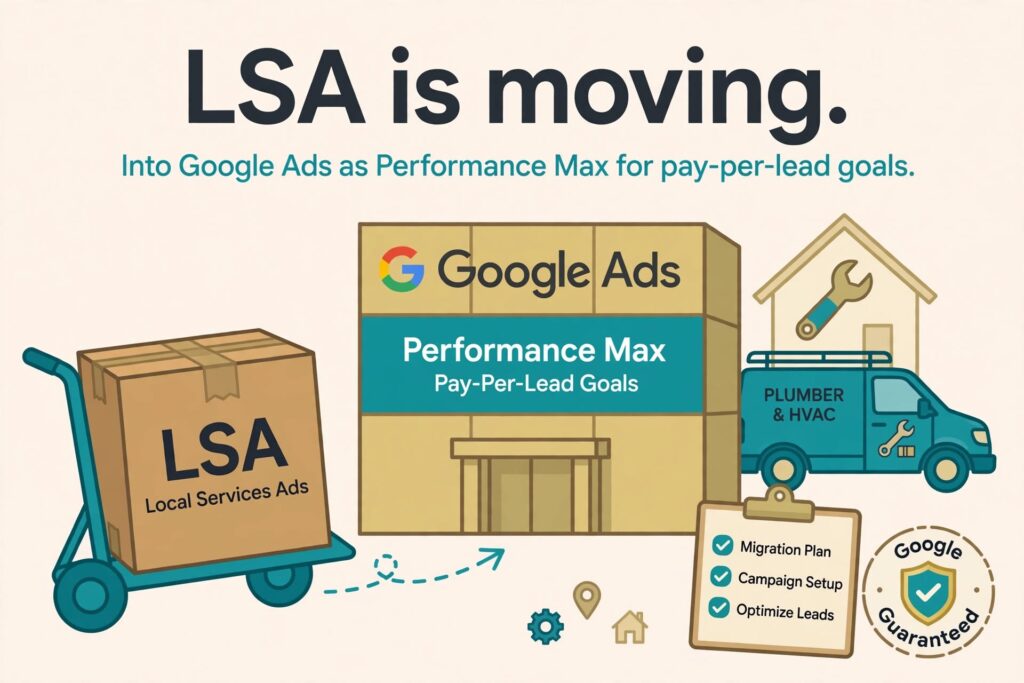
Local Services Ads are moving into Google Ads. Not getting a new coat of paint, actually moving, as a new kind of Performance Max campaign Google calls “pay-per-lead goals.” The move is automatic, it’s happening in waves, and if you run LSAs for a home services business you’re near the front of the line.
We put this guide together because most of what’s out there either rewrites Google’s announcement or tells you not to worry. We’re worried. Not about the move itself, but about what it does to the one control LSA advertisers actually had, which was deciding what a lead was worth. So here’s what’s changing, what to do before it happens, what to check right after, and why we think the bidding change deserves a lot more attention than it’s getting.
Where Things Stand
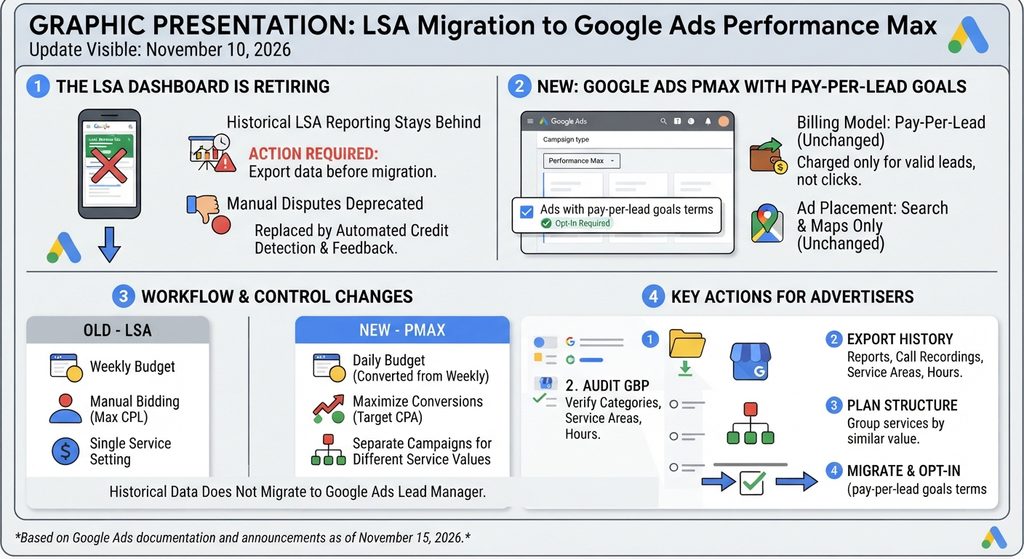
Google announced the plan on July 20, 2026: fold Local Services Ads into the main Google Ads platform, starting in August with US home services and rolling through the rest into 2027. Google set up a dedicated support line for migrating advertisers and published a stack of help pages. Then on November 10, a new opt-in started showing up in accounts called “Ads with pay-per-lead goals terms,” which you have to accept before the new campaigns will run.
You won’t need to rebuild anything. The move happens automatically and your settings come across with it. But it’s more than a rename, and the parts that change are the parts you used to control. Most coverage treats the bidding change as a footnote. We think it’s the story.
What Changes at a Glance
| Area | What it means for you |
|---|---|
| Stays the same | You still pay per valid lead, not per click. Ads still show on Search and Maps, in the same spots. Still no keywords. Your Google Business Profile still drives targeting. |
| Bidding | Manual max cost per lead is gone. Campaigns run on Maximize Conversions, with an optional target cost per lead set at the campaign level, one per campaign. |
| Reporting | Your LSA performance history does not show up in Google Ads. The campaign starts with a clean slate. |
| Lead types | Phone calls are required. Messages and bookings stay optional. |
| Business details | Name, address, category and hours sync from your Business Profile. Edit them there, not in Google Ads. |
| Where you manage it | Budgets, targeting, assets and leads all live inside Google Ads, next to your Search and Performance Max campaigns. |
Before Your Account Moves
1. Export everything
If you only do one thing on this list, do this one. Lead reports, call recordings if you keep them, disputes and credits, cost per lead by category and by month. Don’t count on any of it coming across in a usable form. The first time someone asks whether the new setup is doing better or worse, this export is the only thing you’ll have to compare against.
2. Write down your benchmarks
Pull together cost per lead, lead volume, dispute rate and, most important, the share of leads that turned into booked jobs, by service category. Get it on paper now while the old dashboard still exists. A benchmark you reconstruct after the fact is a guess.
3. Clean up every Business Profile
No keywords means the profile basically is your targeting. Categories, service areas, hours, photos, reviews. Anything stale today rides into the new campaign on day one. If you’re multi-location, that means every profile, and it always takes longer than anyone budgets for.
4. Decide how you’ll value different services
This is the change that matters most and gets talked about least. One target cost per lead per campaign means a drain cleaning lead and a water heater replacement lead get valued the same unless you do something about it. Figure out now which services are worth noticeably more, or less, so you’re ready to act once you can see how the migrated campaign is set up.
5. Check your integrations and your admins
If LSA leads flow into a CRM, a call tracking platform or a reporting dashboard, find out what happens to that connection when the campaign moves into Google Ads. And make sure the people who should see Google’s migration notices actually have admin access, so the email doesn’t land in an inbox nobody reads.
6. Read the terms before you click accept
The November terms don’t say much about how lead prices are set, what qualifies for a credit, or whether a lead has to become a booked job. They do make clear that service quality and customer disputes are on you. None of that is shocking. Read it anyway.
The First Two Weeks After Migration
Run through the settings line by line
Service areas, business categories and service types, ad schedule, contact phone number, budget and bid strategy. Google moves your settings across automatically, which is helpful, but automatic isn’t the same as correct. Look at how your budget translated into the new structure in particular, because Google Ads paces spend differently from the old LSA dashboard.
Confirm your photos and callouts made it
Check the assets in the campaign against what you had in LSA. Business details now come from the Business Profile, so if something looks wrong in the ad, the fix is usually in the profile, not in Google Ads.
Keep running it like an LSA, not like Performance Max
This one surprised us a little. The name says Performance Max, but the things that make it work are the same things that made LSAs work: a strong Business Profile, lots of recent reviews, fast response to leads, good photos and the right service types turned on. The usual Performance Max playbook, feeding it audience signals and creative variations, doesn’t really apply here. Don’t let the new label talk you into a new strategy.
Don’t leave it on Maximize Conversions by default
Migrated campaigns land on Maximize Conversions, and the target cost per lead is optional. That makes “do nothing” the default, and doing nothing is the most expensive choice on this list. More on why in the next section. Until a target is in place, your budget is the only cap you have, so set it to what you’re actually willing to spend, not what the old weekly budget happened to be.
Answer leads fast, and keep rating them
Leads now live in the lead manager inside Google Ads. Response time still matters, and Google’s own guidance says not to turn on messages or bookings unless someone will answer within 24 hours. A message that sits for two days is a lead you paid for and lost. Keep rating leads and flagging the bad ones. That feedback is one of the few levers left.
The Part We’re Worried About: Maximize Conversions
This is the change we’d spend the most time on. Under the old setup you could tell Google the most you’d pay for a lead in a category, and that was that. Under pay-per-lead goals that control is gone, and what replaces it carries some real long-term risk.
The ceiling is gone
Maximize Conversions is designed to get as many leads as it can for your budget. Read that carefully. It’s built to spend the budget, not to protect your cost per lead. The old max cost per lead was a hard cap on every lead. Nothing in the new setup works that way.
With no target, cost per lead drifts up
It’s the same thing we’ve watched Smart Bidding do on Search for years. As long as the budget gets spent and leads keep coming, nothing stops cost per lead from creeping up week over week. Nobody notices a few dollars a month. Six months later you’re paying a third more for the same jobs, and since the history didn’t migrate, there’s nothing in Google Ads to compare it to.
The incentive points the wrong way
The platform deciding what your lead is worth is the same platform that gets paid more when the answer goes up. That isn’t a conspiracy theory, it’s just how the incentive works. It’s the same question we asked when Google killed Enhanced CPC.
A target is an average, not a cap
Setting a target cost per lead helps, but it doesn’t bring the ceiling back. Individual leads can cost a lot more than the target as long as the blend lands near it. In our Search accounts, Target CPA campaigns tend to land within about 10% of whatever target we give them. Sounds great, until you realize the target stops being a limit and becomes the price. Set it at $90 and plan on paying about $90, even in weeks when $70 leads were sitting right there.
One target hides expensive services
With one target per campaign, the average gets spread across every service in it. Cheap leads in one category quietly pay for expensive leads in another, and the blended number still looks fine on the report.
Waiting 90 days makes it harder to fix
Say a campaign runs on Maximize Conversions for its first 90 days, which is about what “let it learn” advice tends to suggest. By then the system has settled into whatever cost per lead it found, probably higher than your old LSA numbers. Now you set a target at your pre-migration benchmark. If that’s well below what the campaign has been paying, the likely result isn’t cheaper leads. It’s fewer leads, sometimes a lot fewer, while the bidding relearns, and it may never get back to the old volume at the old price. You end up choosing between keeping the inflated cost per lead or giving up volume to get the price back down, and the gap gets bigger the longer you wait.
What we recommend instead
Our advice runs a little against the usual “let it learn” line. Set a target as soon as the campaign has enough lead volume to support one, and base it on the benchmarks you saved before the migration, not on what the new campaign shows you. Start at or slightly above your old cost per lead rather than below it, then step it down in small moves a couple of weeks apart while watching volume. If volume falls off a cliff after a change, back up one step. For low-volume campaigns where a target isn’t realistic, treat the budget as your cap and review cost per lead every week, not every quarter.
The First 90 Days
Split services that are worth different amounts
Once you’ve seen a few weeks of data, break out the services where lead value really differs. If you lump everything together, Google will go find the cheapest leads it can, and the cheapest leads are rarely the jobs anybody actually wants.
Tie every lead back to a booked job
Lead volume and cost per lead are Google’s numbers. Booked jobs and revenue are yours. Connect the two in your CRM, because that’s the only way to tell whether a cheaper lead is actually a better deal. We’ve written about call bots eating call center time even when the charge gets credited back, and pay-per-lead doesn’t fix that on its own.
Watch for double counting
With LSAs sitting in the same account as Search and regular Performance Max, the same caller can get counted twice. Make sure your call tracking and conversion setup can tell the campaigns apart, or everything will look better than it is.
Don’t let the calendar fool you
A lot of these accounts are moving heading into winter, when furnace calls go up and AC calls fall off a cliff. We spent a good chunk of this year learning that before-and-after comparisons without a seasonal control can give you the wrong answer, twice in our case. Compare against the same weeks last year, or against a location that hasn’t migrated yet, before blaming or crediting Google.
Migration Checklist
| When | What to do |
|---|---|
| Before | Export all LSA lead, call, dispute and credit history |
| Before | Record cost per lead, dispute rate and booked-job rate by service |
| Before | Audit every Business Profile: categories, service areas, hours, photos |
| Before | Decide which services deserve their own cost per lead target |
| Before | Confirm CRM and call tracking integrations, and who gets migration notices |
| Before | Read the pay-per-lead terms before accepting |
| Weeks 1 to 2 | Verify settings, service types, phone number, budget and bid strategy |
| Weeks 1 to 2 | Confirm photos and callouts migrated |
| Weeks 1 to 2 | Set budget as a hard cap; respond to every lead within 24 hours |
| Weeks 2 to 4 | Set a target cost per lead from pre-migration benchmarks once volume supports it |
| Days 30 to 90 | Split high-value services; step targets down in small moves, watching volume |
| Every week | Compare cost per lead to your saved benchmark, not to last week |
| Days 30 to 90 | Reconcile leads to booked jobs and track dispute rate |
| Days 30 to 90 | Check for double-counted calls; compare against last year, not last month |
What We’re Still Watching
Credits are the big one. Even after Google replaced manual disputes with automated credits and lead ratings back in 2024, advertisers at least had a rough sense of what triggered a credit. The new terms don’t spell out how that works going forward, and we haven’t seen it explained anywhere yet. If your account has already moved and you’ve pushed a dispute through, we’d like to hear how it went.
Having LSAs in the same place as the rest of the account should make budgeting and reporting simpler, and that part is real. But simpler management doesn’t help much if the price per lead quietly drifts up while you’re enjoying it. It’s the same pattern as the AI Max migration this fall: Google picks the timing and the defaults, and the cleanup lands on you. If your account has moved and something looks off, or you’d like a second set of eyes before it does, get in touch.